Atlas Has Two AI Layers and Most People Only See One
In October 2025, OpenAI shipped Atlas, a full Chromium-based macOS browser with ChatGPT built into it from the ground up. Not a Chrome extension. Not a sidebar plugin. A standalone browser where AI is the default, not an add-on.
Most coverage focuses on the "chat with any page" feature. But Atlas has multiple layers of AI integration, and the most interesting one is the one nobody talks about.
What Atlas Actually Is
Atlas replaces your browser entirely. It handles tabs, bookmarks, passwords, history, and the same core surfaces Chrome handles. You can import your Chrome profile in one click. But every surface of the browser has ChatGPT woven into it.
There are at least six ways ChatGPT shows up:
- Ask ChatGPT sidebar: always available on every page
- Contextual suggested actions: page-specific buttons in the toolbar
- "Surprise me" button: serendipitous conversation starters on the new tab page
- Form field assistance: a ChatGPT icon appears in any text field (email composers, CMS editors, search bars)
- Right-click intelligence: highlight text, right-click, and get context-aware options like "Summarize this" or "Explain this concept"
- Agent mode: ChatGPT can navigate, click, fill forms, and complete multi-step tasks autonomously
That's a lot. But the two that matter most for understanding where AI tools are going are layers 1 and 2.
Layer 1: Ask ChatGPT (Reactive, Always Present)
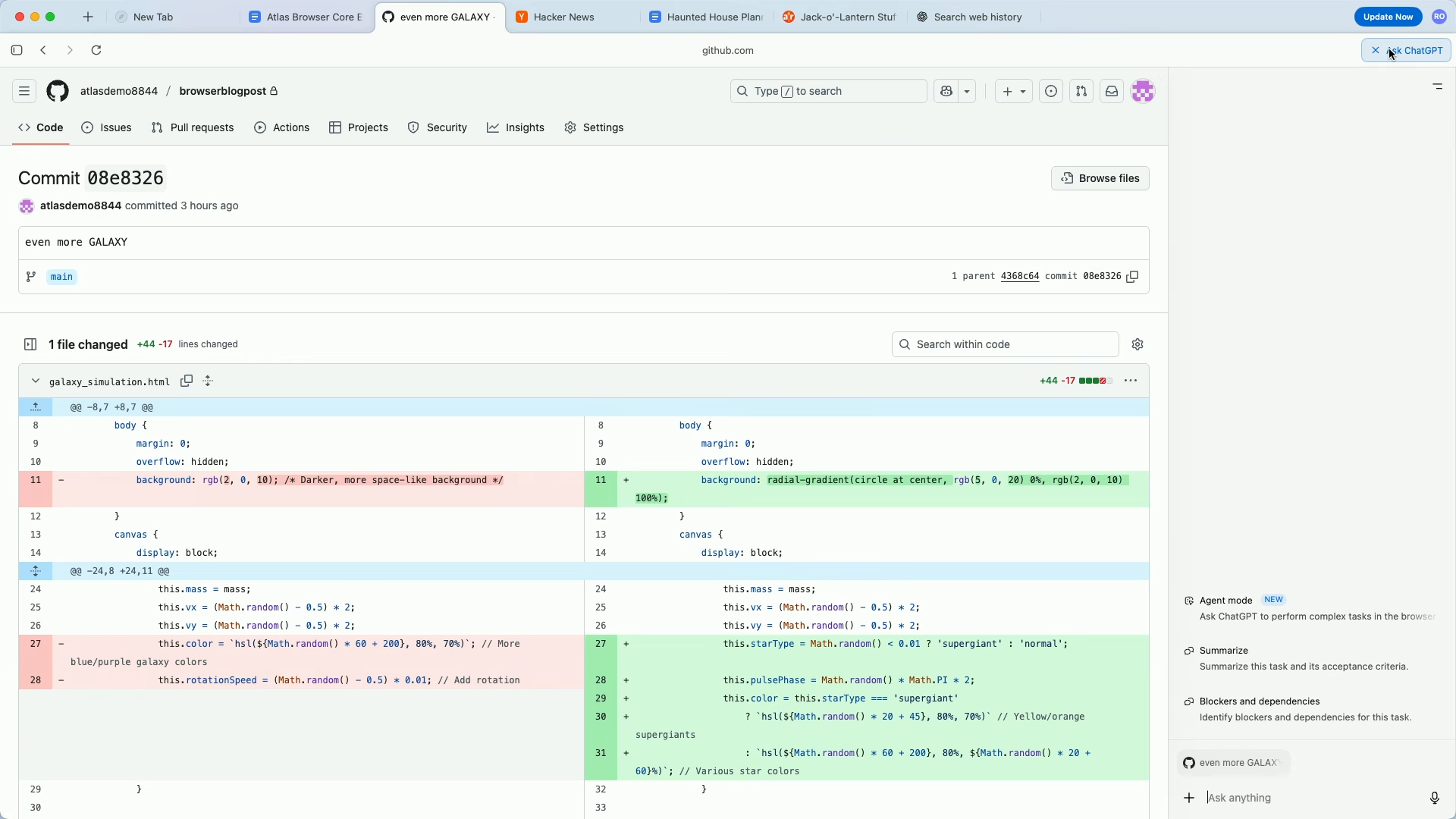
Every page has an "Ask ChatGPT" button in the top-right toolbar. Click it, and a sidebar opens where you can chat with ChatGPT about whatever you're looking at. ChatGPT can read the current page context, including the full text, layout, and metadata, so there's no copy-pasting needed.
Want a summary of a long article? Ask. Want to compare two products across open tabs? Ask. Want to draft a reply to an email you're reading? Ask. The sidebar stays alongside your page, so you never leave the tab you're on.
This is the layer everyone talks about. It's genuinely useful. But it's reactive. You have to decide what to ask, and you have to click the button to start.
If you've used Claude's Chrome extension, or Copilot in Edge, or any AI sidebar, this is the same interaction model. User sees content, user decides to invoke AI, user types a prompt.
Layer 2: Contextual Suggestions (Proactive, Page-Specific)
This is the layer that changes things.
Next to the Ask ChatGPT button in the toolbar, Atlas surfaces suggested actions that change based on what page you're on. OpenAI calls these proactive, personalized suggestions, buttons that appear before you think to ask.
On my YouTube home feed, it showed "Analyze recommendations." I clicked it, and ChatGPT read every video title, thumbnail topic, and channel on my visible feed, then clustered them into five content themes: AI/tech strategy, geopolitics, mental models, music curation, and cultural identity. It then generated video ideas based on the intersection of those clusters. All from one click, with no prompt engineering, no copy-pasting URLs, and no explaining what I wanted.
On a long blog post, it showed "Extract takeaways." On a shopping page, the suggestions shift to product comparisons. On a research paper, you might see "Summarize findings" or "Explain methodology." The browser infers what's likely useful from your browsing context and surfaces it before you ask.
These aren't static buttons. They adapt. And they're placed right in the toolbar, not buried in a menu. That makes them visible at the moment you're most likely to need them.
The "Surprise Me" Button
There's one more proactive feature worth calling out. Atlas has a "Surprise me" button that opens a fresh ChatGPT conversation with serendipitous prompts, things like "Suggest something new I could learn today that I probably don't know about but might find interesting" or "What kinds of surprising questions would make for a fun chat between us?"
This is the opposite of a search bar. You're not looking for anything specific. You're telling the AI: show me something I didn't know I wanted. It's a small feature, but it signals something important about Atlas's design philosophy. The browser isn't just there to help you find things. It's there to surface things you wouldn't have found on your own.
The Other Layers Worth Knowing
Atlas goes further than the sidebar, suggestions, and surprise prompts. Three other features extend the same pattern:
Form field assistance. When you click into any text input, whether an email composer, a Google Doc, or a CMS editor, a small ChatGPT icon appears. Click it and you get options to rewrite, expand, shorten, translate, or adjust tone. It works inline, so you stay in your writing flow without opening the sidebar.
Right-click intelligence. Highlight any text on a page, right-click, and choose "Ask ChatGPT." The options adapt to context: "Explain like I'm 12" for technical content, "Translate to Spanish" for foreign text, "Extract key dates" for event-heavy pages. You can also right-click and tell ChatGPT to remember something, which feeds into the next feature.
Browser memories. If you opt in, Atlas remembers key details from your browsing sessions, including products you viewed, topics you researched, and articles you read. These memories persist for 30 days and power smarter suggestions over time. The new tab page uses them to suggest actions like "Continue researching holiday gifts" or "Pick up where you left off on your project." You control what gets remembered, and incognito mode turns it off entirely.
Agent Mode: The Third Evolution
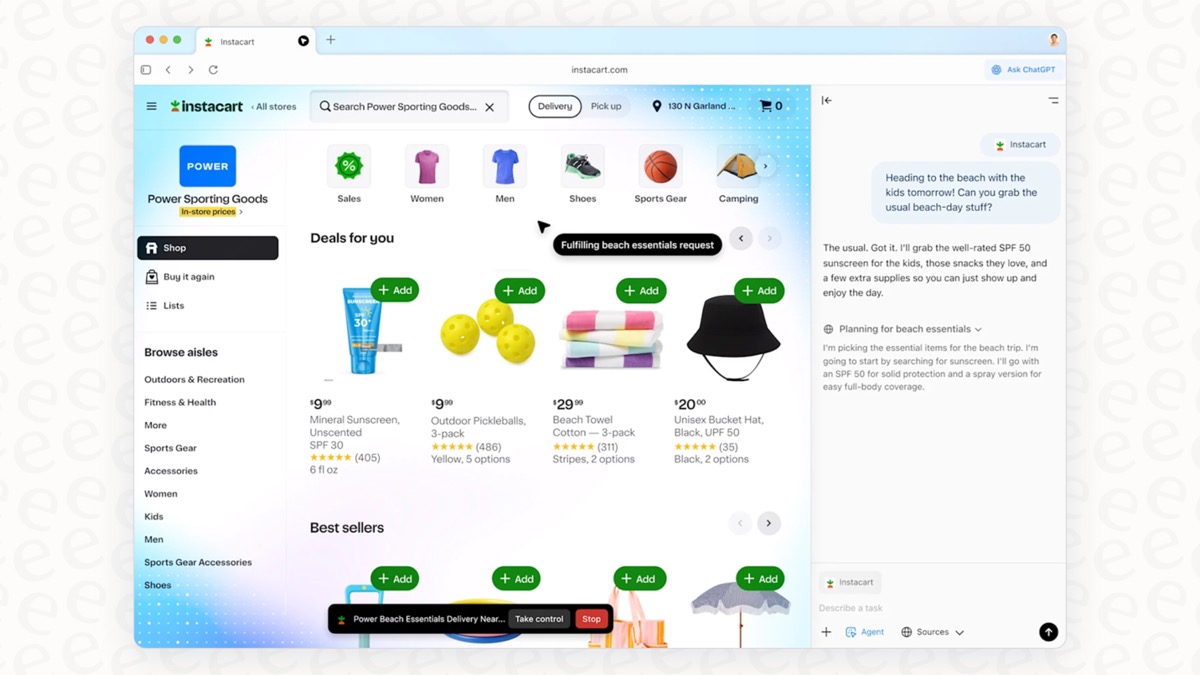
Plus, Pro, and Business users get access to agent mode, which takes the pattern one step further. Instead of suggesting an action and waiting for you to click, agent mode lets ChatGPT execute multi-step tasks in the browser autonomously.
Give it a recipe and ask it to order the ingredients. It will find a grocery store, add items to a cart, and get it ready for delivery, navigating between pages, filling forms, and clicking buttons while you watch. The browser highlights active elements in blue and narrates what it's doing. You can pause, interrupt, or take over at any point.
This is still in preview and makes mistakes on complex tasks. But the trajectory is clear: reactive sidebar to proactive suggestions to autonomous execution. Each layer reduces the amount of human prompting required.
Why This Matters If You Build AI Tools
The interesting thing about Atlas isn't any single feature. It's the layering.
Most AI integrations today are purely reactive. A chat window. A sidebar. A text box where you type a prompt. The user has to know what to ask, when to ask it, and how to phrase it. That's Layer 1.
Atlas shows what Layer 2 looks like: the AI observes your context and proposes the next action before you think to request it. The prompting friction drops to near zero. You don't have to be good at prompting. You just have to recognize a good suggestion when you see one.
And Layer 3 (agent mode) removes the user from the loop almost entirely.
If you're building AI into a product, the chat sidebar is table stakes now. Every browser has one, every IDE has one, every productivity tool is adding one. The differentiator is the contextual suggestion layer: knowing what to offer based on what the user is looking at, before they ask.
The companies that figure out context-aware, proactive AI instead of only reactive chat will build the tools people actually keep using.
Want to see more projects like this? Browse all builds for interactive tools, dashboards, and case studies with source and build times. Or learn more about ShipWithTez.